GUI Customisation
GUI Customisation
You may find it more useful to watch our video on this subject, since it provides full demonstrations of the features mentioned here.
Customising the general interface of Renoise can be done with the Global View Presets. In Renoise and Redux many of the interface panels can be resized to suit your needs by placing the mouse cursor on the dividing line and click-dragging. 
In the GUI tab of the Preferences menu the entire interface can be scaled, and in that tab and the Theme tab, there are other methods of customising the GUI to your liking.
Pattern/Phrase Editor Customisation
There are several preferences in the GUI tab relevant to GUI customisation.

The first option is ‘Hide 0s in effect columns’. This is simply to reduce visual clutter and make it obvious when an effect command is actually present. Older trackers used to display 0 as the default character in effects columns, so if you're used to this style you may feel more at home with this disabled.

‘View multiple patterns continuously’ is available for Renoise only, not Redux. This shows any previous or next patterns at the edges of the current pattern, using a muted color palette. This can be an aesthetic preference, but it's also extremely useful for composing music across patterns, such as when using polyrhythms.

‘Syntax highlighting’ applies color-coding for Effect Commands, with each different type having a different color. Disabling it makes them the same color as the notes.

The ‘Line number format’ option offers the choice to label lines using either decimal or hexadecimal, affecting the line numbers of both the Pattern Editor and the Phrase Editor.

The final three options will probably be of the most use to people, since you can choose between four font sizes, adjust the horizontal spacing between individual letters and numbers, and change the vertical spacing between lines. Perfect for customising how the notes and effects appear to you, no matter how you’re scaling the GUI overall.
Theme Customisation
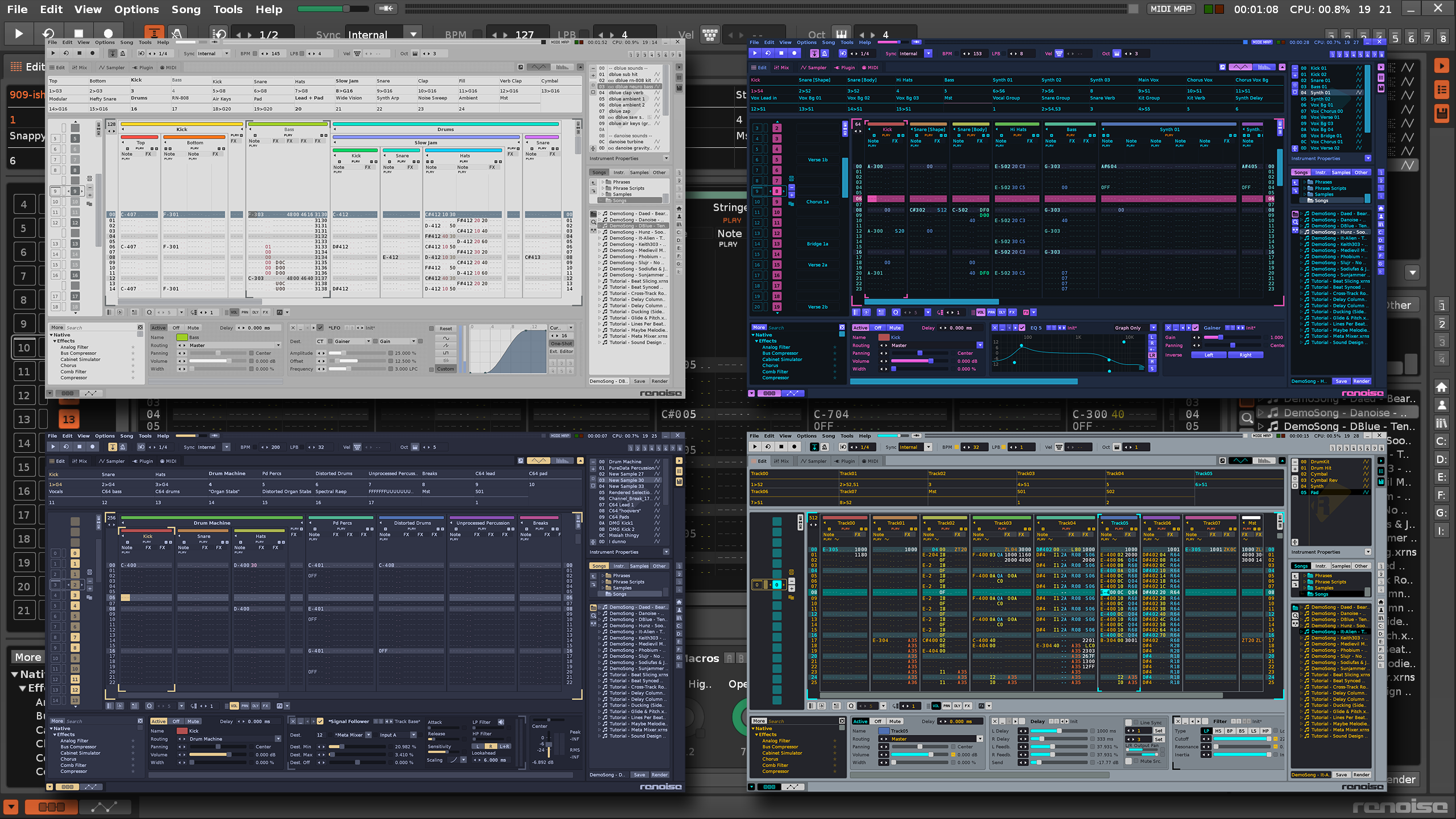
Themes control the entire color scheme for Renoise and Redux, as well as the shading of buttons, sliders, panels and optional texturing. Renoise comes with a wide range of Themes to choose from. If you’ve created your own Theme then it can be saved for future use by entering the desired name into the text field and clicking the "Save" button. Any existing Theme can be exported for others to use, and likewise theirs can be imported.
Check our forums for a huge resource of custom Themes created by our users, and note Themes are compatible between Renoise and Redux.
|
| (click for higher resolution image) |
Creating your own custom Theme is easy but can also be quite in-depth, since each individual element of the user interface has its own Color Setting. Of special note, since this might not be immediately obvious, you can also adjust the Color Settings for the VU Meters and set the default Track Colors. Colors can be adjusted with traditional RGB values or with HSV: Hue (color), Saturation (color intensity) and Value (brightness).
The easiest way to get started with creating a Theme is to load an existing one then change the Global Color Filter settings. This uses HSV sliders and there's also an Invert toggle to reverse the values. Adjustments made to the Global Color Filter settings are not automatically applied to the Color Settings themselves, where you might want to make individual changes for certain elements, so hit the Apply button to make it happen.
The texture set can be changed, as well as the bevels used for the current Theme. ‘Knob shade’ affects the appearance of buttons and sliders, ‘Body shade’ affects the general panelling of the interface, and ‘Contrast’ changes the shading contrast of the entire GUI. Most of the textures available are pretty subtle, though they can appear more or less prominent depending on the adjustments you've made to your particular color scheme.
You can create your own textures by copying an existing texture set to use as a template. Although this isn't officially supported, the new textures will be automatically added to the Textures drop-down menu.